← Help center / Sharing and the venue
Show live scores on a TV at the venue
Updated 2 minute read
TV mode turns any screen at your venue into a live scoreboard. Players stop crowding your desk to ask who plays next.
Open TV mode
- On a laptop or computer, open the tournament.
- Press TV mode at the top. It is not shown on phones.
- Connect the computer to the TV and make the browser full screen.
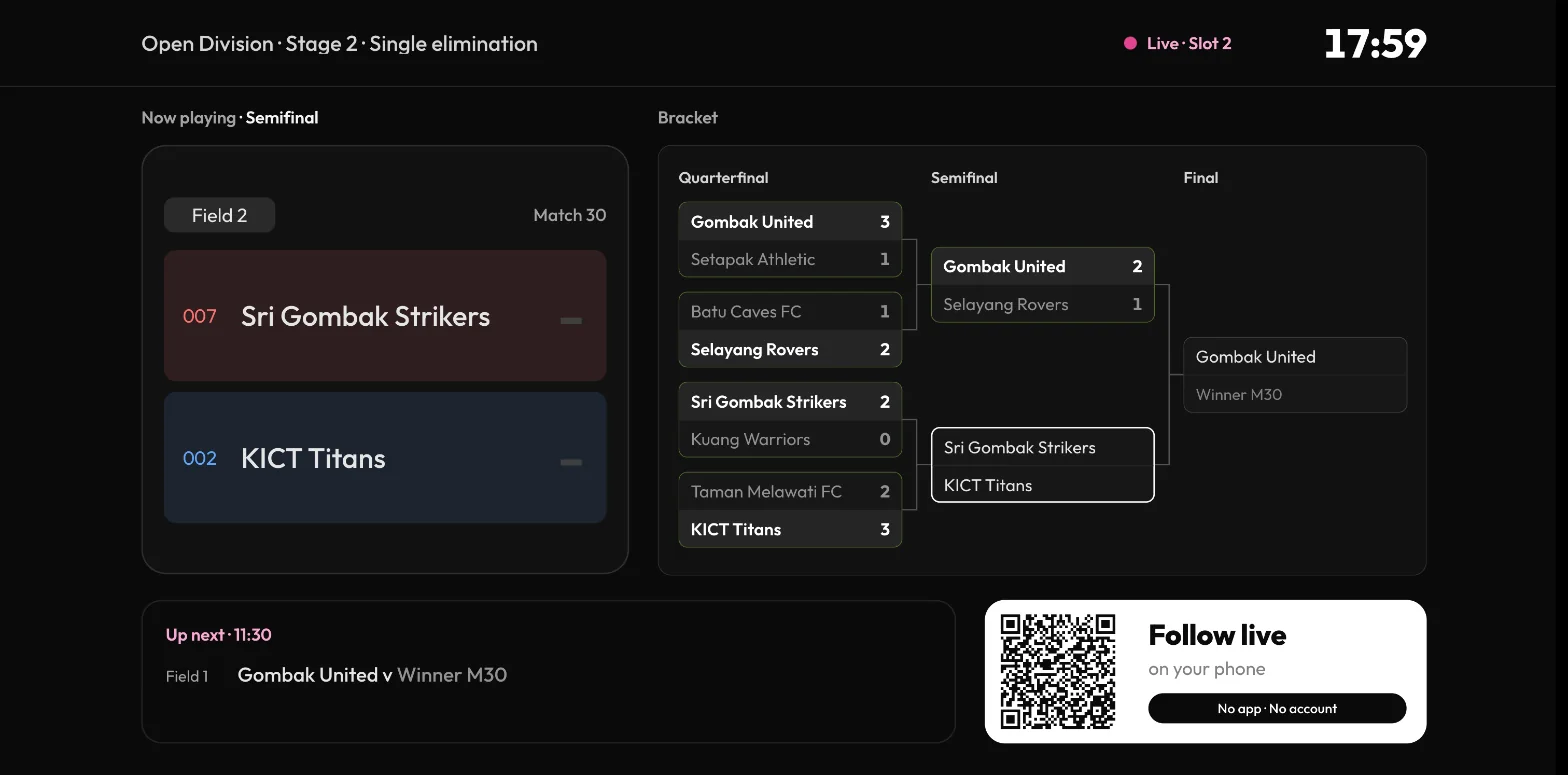
It shows what is being played now, what is up next, and the tables or the bracket. A QR code lets people follow on their phones. It keeps itself up to date as scores come in.
Choose what each screen shows
Move the mouse to show the bar at the bottom, then press Settings. Each screen keeps its own setup:
- Show only the matches, or only the tables and bracket.
- Show one field, or one group, per screen.
- Make it turn pages faster or slower.
- Hide the QR code, or the sponsors.
To show a message at the top of every screen, like "Finals start at 3 pm", set Message on TV screens in Tournament Settings.
Setting up at the venue
- Any laptop with a browser works. Connect it to the TV or projector with an HDMI cable.
- Make the browser full screen, and set the laptop not to sleep while the event runs.
- With two screens, open TV mode twice and set each to a different field or group.
- Put one screen near the courts showing the matches, and one near the entrance showing the tables and the QR code.
Common questions
Does TV mode update by itself?
Yes. New scores appear on the screen without anyone touching the laptop.
Can I open TV mode on a smart TV browser?
Yes, if the TV has a web browser. Open the tournament there, or use a laptop connected to the TV.